TL;DR
One of the key advantages of developing mobile applications with Flutter is Hot Reload, which makes UI development in the mobile app world significantly smoother. You can see the results (almost) instantly when you save your code files. This stems from the fact that the Flutter team originally came from a web development background, where instant feedback upon saving was the norm, and they wanted to bring that same experience to mobile app development.
One of the key advantages of developing mobile applications with Flutter is Hot Reload, which makes UI development in the mobile app world significantly smoother. You can see the results (almost) instantly when you save your code files. This stems from the fact that the Flutter team originally came from a web development background, where instant feedback upon saving was the norm, and they wanted to bring that same experience to mobile app development.
However, because of the way Flutter implements Hot Reload, there are many times when not understanding how it works leads to bugs caused unintentionally by Hot Reload itself—not by actual mistakes in our code. This article invites everyone to understand the differences between Hot Reload, Hot Restart, and Full Restart, so you won’t be caught off guard when you encounter errors even though you’re confident your code is correct.
Hot Reload
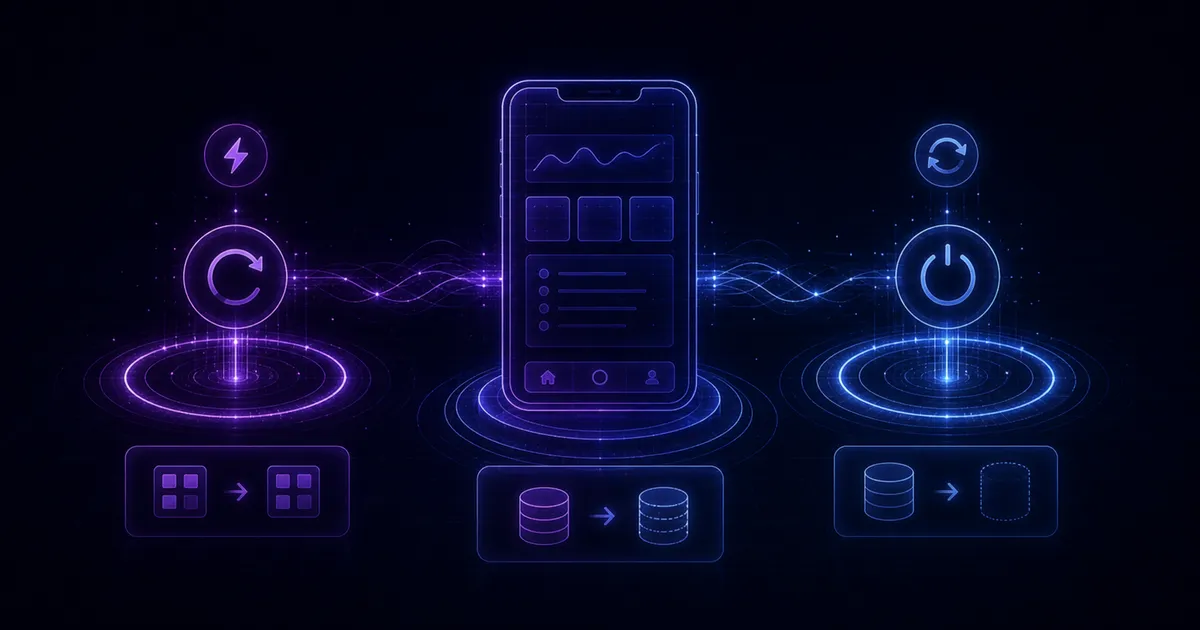
Hot Reload is what we tend to use most frequently. It works by injecting changed code into the VM and rebuilding the widget tree from scratch, making it the fastest of the three methods. The crucial point about Hot Reload is that it does not clear your app’s state—which is both a blessing and a curse.
The upside is that testing UI tied to a specific state becomes much easier. If you’ve navigated deep into your app, you’ll stay at that same depth rather than being thrown back to the beginning. The downside is that sometimes we change business logic in ways that make the current state impossible to reach. Additionally, Hot Reload doesn’t work correctly if you change a widget’s type—for example, from a StatelessWidget to a StatefulWidget—because Hot Reload doesn’t re-run main() or initState(), so the state never gets created after the type change, leading to errors. Both of these problems can be solved with the next option: Hot Restart.
Hot Restart
Hot Restart loads changed code into the VM just like Hot Reload, but it restarts the entire Flutter app. This means main() gets called and the application is rendered completely from scratch, causing you to lose your state. We typically use Hot Restart when we’ve made changes that affect state, which makes this method take slightly longer to load changes.
Full Restart
This completely stops the application (causing the debug connection to drop) and starts fresh from the beginning. It takes the longest because the app must be recompiled from scratch and a new debug connection must be formed. We usually need a Full Restart when adding new assets like images, installing new packages or plugins whose code wasn’t in the app from the start, or making changes at the native level (in the android or ios folders)—such as declaring permissions, for example.
Summary
Use Hot Reload as your default. When your code changes involve state, switch to Hot Restart. For native-level changes or new packages/plugins, you’ll need a Full Restart.
📚 Hope you enjoy reading!